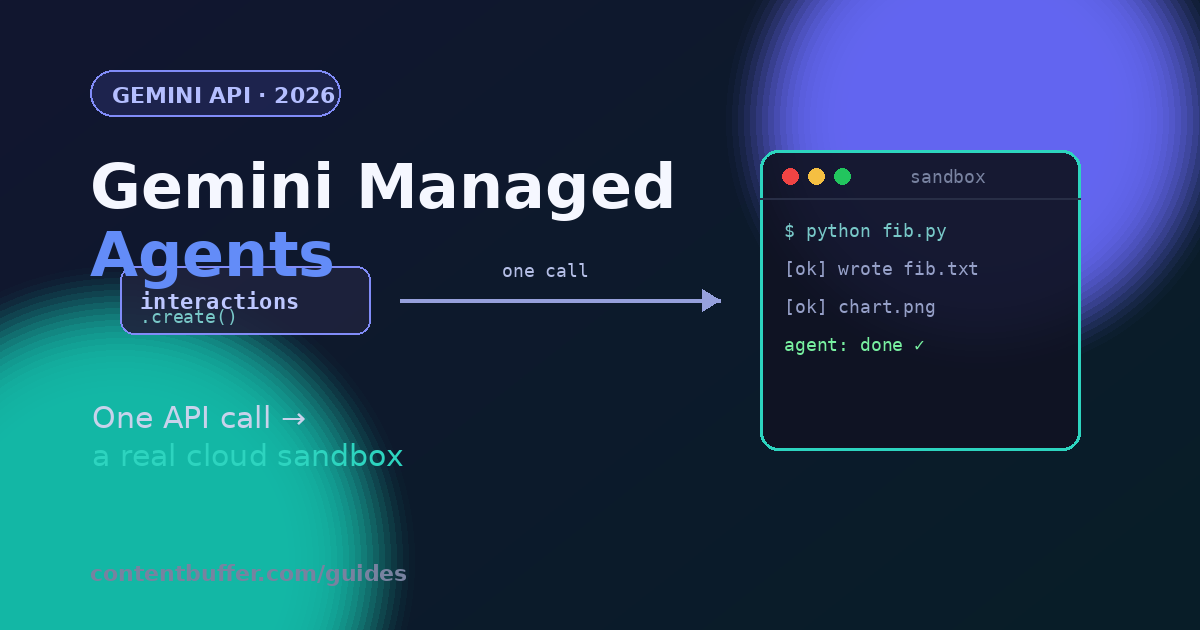
Gemini Managed Agents: One Call to a Cloud Sandbox — ContentBuffer guide

Gemini Managed Agents: One Call to a Cloud Sandbox

K
Kodetra Technologies··9 min read Intermediate

Summary

Spin up a sandboxed AI agent that writes, runs, and ships code with one Gemini API call.

Run a real AI agent with a single API call

On May 19, 2026 at Google I/O, the Gemini API quietly shipped the feature most agent developers have been hacking around for two years: Managed Agents. With one call you spin up an agent that reasons, plans, calls tools, writes code, and actually runs that code inside an isolated, ephemeral Linux sandbox that Google provisions and tears down for you.

Until now, "give the model a sandbox" meant you owned the hard part. You stood up a container, locked down networking, mounted a filesystem, piped stdout back to the model, handled timeouts and cleanup, then did it again per user as you scaled. The Antigravity agent that powers Managed Agents (built on Gemini 3.5 Flash) folds all of that behind client.interactions.create(...). You describe a task in plain English; you get back the agent's reasoning trace, the commands it ran, and the files it produced.

This guide walks through the whole loop end to end: your first interaction, how to read the response object, multi-turn sessions that keep files and context alive, streaming, pulling files out of the sandbox, and packaging your own custom agent from an AGENTS.md file. Every snippet is taken from the live API surface as of the 2026-05-20 revision. By the end you'll have a working research agent that reads a web page, summarizes it, and hands you a PDF.

What you'll build

A small Python program that does three things, each with one API call: (1) asks an agent to generate data and save it to a file, (2) continues that same session to chart the data, and (3) defines a reusable custom agent that produces PDF reports. No container orchestration, no infrastructure code.

Prerequisites

  • Python 3.9+ (the same patterns work in the JavaScript SDK if you prefer Node).
  • A Gemini API key from Google AI Studio. Managed Agents rolled out in preview on May 19, 2026, so make sure your key is on an account with access.
  • The google-genai SDK, version 1.x or newer.
  • Comfort reading async-ish agent output. The agent can take tens of seconds on real tasks because it is genuinely running code, not just predicting text.
pip install -U google-genai
export GEMINI_API_KEY="your_key_here"

The SDK reads GEMINI_API_KEY from the environment automatically, so genai.Client() needs no arguments.

Step 1: Your first agent interaction

A single call to the Interactions API provisions a fresh Linux sandbox, runs the full agent loop, and returns the result. Three parameters do the work: agent names the managed agent, environment="remote" asks for a brand-new sandbox, and input is the task.

from google import genai

client = genai.Client()

interaction = client.interactions.create(
    agent="antigravity-preview-05-2026",
    input=(
        "Write a Python script that generates the first 20 Fibonacci "
        "numbers and saves them to fibonacci.txt. Then read the file "
        "and print its contents."
    ),
    environment="remote",
)

print(f"Interaction ID:  {interaction.id}")
print(f"Environment ID:  {interaction.environment_id}")
print(f"Output:\n{interaction.output_text}")

antigravity-preview-05-2026 is the current general-purpose managed agent. environment="remote" is the magic word: it tells the API to allocate a clean sandbox just for this run.

Example output (your IDs will differ):

Interaction ID:  interaction_8f3c1a9e2b
Environment ID:  env_a17d4c0f93

Output:
Done. I wrote fib.py, ran it, and it saved 20 Fibonacci numbers to
fibonacci.txt. Here are the contents:
0, 1, 1, 2, 3, 5, 8, 13, 21, 34, 55, 89, 144, 233, 377, 610,
987, 1597, 2584, 4181

Notice what happened: the agent decided to author a script, executed it in the sandbox, then read the file back, all inside that one call. You wrote zero lines of orchestration.

Step 2: Read the Interaction object

The return value is more than a string. output_text is the final answer, but steps is the agent's full work log: reasoning, tool calls, and code execution, in order. Inspecting it is how you debug an agent that did the wrong thing.

print("Final answer:", interaction.output_text)
print("Number of steps:", len(interaction.steps))

for i, step in enumerate(interaction.steps):
    # step.type is typically one of: reasoning, tool_call, code_execution
    print(f"[{i}] {step.type}")

Two IDs are worth keeping. interaction.id identifies this turn's conversation context. interaction.environment_id identifies the sandbox and everything in it: files, installed packages, and execution state. The next step uses both.

Step 3: Continue the session and keep your files

Real agent work is multi-turn. The API tracks two independent kinds of state, and you decide which to carry forward:

  • Conversation context (chat history and reasoning trace) is resumed with previous_interaction_id.
  • Environment state (files, installed packages, sandbox state) is resumed by passing the previous environment_id into environment.

Pass both to pick up exactly where you left off. The file from Step 1 is still there:

interaction_2 = client.interactions.create(
    agent="antigravity-preview-05-2026",
    previous_interaction_id=interaction.id,
    environment=interaction.environment_id,
    input="Now plot the Fibonacci sequence as a line chart and save it as chart.png.",
)

print(interaction_2.output_text)

Because fibonacci.txt persisted in the same sandbox, the agent reads it directly instead of regenerating the numbers, then writes chart.png next to it. You can mix the two state dimensions freely:

Goalprevious_interaction_idenvironment
Resume everythinginteraction.idenvironment_id
Same files, fresh chat(omit)environment_id
Same chat, new sandboxinteraction.id"remote"
Start completely clean(omit)"remote"

Step 4: Stream long-running tasks

A task that browses the web and builds a document can run for a while. Set stream=True to watch the agent think and act in real time instead of staring at a blank terminal.

stream = client.interactions.create(
    agent="antigravity-preview-05-2026",
    input="Read Hacker News, summarize the top 5 stories, and save the results as a PDF.",
    environment="remote",
    stream=True,
)

for event in stream:
    print(event)

Streaming yields an iterable of step deltas: incremental text, reasoning tokens, and tool-call updates. It is the same agent loop as the non-streaming call, just surfaced event by event so you can render progress in a UI or a log.

Step 5: Download files out of the sandbox

The sandbox is ephemeral, so anything the agent creates needs to be pulled out before the environment is reclaimed. The Files API exposes a snapshot of the whole environment as a tarball. Hit it with a plain HTTP request using your API key:

import os, requests, tarfile

env_id = interaction.environment_id
api_key = os.environ["GEMINI_API_KEY"]

resp = requests.get(
    f"https://generativelanguage.googleapis.com/v1beta/files/environment-{env_id}:download",
    params={"alt": "media"},
    headers={"x-goog-api-key": api_key},
    allow_redirects=True,
)

with open("snapshot.tar", "wb") as f:
    f.write(resp.content)

with tarfile.open("snapshot.tar") as tar:
    tar.extractall(path="extracted_snapshot")

print(os.listdir("extracted_snapshot"))

After extraction you'll find the files the agent wrote, such as fibonacci.txt and chart.png, sitting in extracted_snapshot/ ready to use.

Step 6: Package a reusable custom agent

Repeating the same system prompt and setup on every call gets old. You can register a named agent that bundles instructions, skills, and a base environment once, then invoke it by ID. Google's twist is that the agent is defined as files: an AGENTS.md for instructions and SKILL.md files for capabilities, which makes the whole agent versionable in git.

agent = client.agents.create(
    id="report-analyst",
    base_agent="antigravity-preview-05-2026",
    system_instruction=(
        "You are a data analysis agent. Generate sequences, visualize "
        "them, and export results as clean PDF reports."
    ),
    base_environment={
        "type": "remote",
        "sources": [
            {
                "type": "inline",
                "target": ".agents/AGENTS.md",
                "content": "Always include a chart and a summary table in your reports.",
            },
            {
                "type": "repository",
                "source": "https://github.com/your-org/skills",
                "target": ".agents/skills",
            },
        ],
    },
)

print(f"Created agent: {agent.id}")

The agent loads .agents/AGENTS.md as system instructions and any SKILL.md under .agents/skills/ as capabilities. Invoke it like any other agent. Each run forks the base environment, so every invocation starts from the same clean baseline:

result = client.interactions.create(
    agent="report-analyst",
    input="Generate the first 50 prime numbers, plot their distribution, and save a PDF report.",
    environment="remote",
)

print(result.output_text)

Worked example: a one-file research agent

Here is the whole thing wired together. It defines a research agent, runs it against a live URL, then downloads the PDF it produced. This is a complete, runnable program.

import os, requests, tarfile
from google import genai

client = genai.Client()
api_key = os.environ["GEMINI_API_KEY"]

# 1) Define a reusable research agent (versionable as files)
client.agents.create(
    id="web-researcher",
    base_agent="antigravity-preview-05-2026",
    system_instruction=(
        "You research a topic from the web and produce a concise, "
        "well-structured PDF brief with sources cited at the end."
    ),
    base_environment={
        "type": "remote",
        "sources": [{
            "type": "inline",
            "target": ".agents/AGENTS.md",
            "content": "Keep briefs under one page. Always cite source URLs.",
        }],
    },
)

# 2) Run it
interaction = client.interactions.create(
    agent="web-researcher",
    input=(
        "Read https://ai.google.dev/gemini-api/docs/agents and write a "
        "one-page brief titled 'What are Gemini Managed Agents?'. "
        "Save it as brief.pdf."
    ),
    environment="remote",
)
print(interaction.output_text)

# 3) Pull the PDF out of the sandbox
env_id = interaction.environment_id
resp = requests.get(
    f"https://generativelanguage.googleapis.com/v1beta/files/environment-{env_id}:download",
    params={"alt": "media"},
    headers={"x-goog-api-key": api_key},
    allow_redirects=True,
)
open("snapshot.tar", "wb").write(resp.content)
with tarfile.open("snapshot.tar") as tar:
    tar.extractall(path="research_out")

print("Saved files:", os.listdir("research_out"))

Remember that web browsing only works if the environment is allowed to reach the network. The sandbox has network isolation enabled by default; you declare an allowlist on the environment to let the agent fetch external URLs or install packages. If your research agent comes back empty-handed, an unconfigured network allowlist is the first thing to check.

Common pitfalls and gotchas

Network is off until you turn it on. Sandboxes start with networking disabled. Tasks that browse the web or pip install a library will fail silently or improvise until you attach a network allowlist to the environment. This is a security default, not a bug.

The environment is ephemeral. If you don't capture environment_id and either reuse it or download the snapshot, the sandbox and its files are gone. Treat the environment ID like a session handle you are responsible for.

Two state knobs, not one. The most common confusion is mixing up previous_interaction_id (chat memory) and environment (files). Forgetting the environment ID gives the agent amnesia about its own files even though it remembers the conversation. Forgetting the interaction ID does the reverse.

Context compaction is automatic, and that's a feature. On long sessions the raw history of reasoning, tool calls, and large file contents balloons fast. The managed agent compacts context automatically at around 135k tokens to prevent token-limit errors and "context rot." You don't configure it, but be aware that very old details may be summarized away on long runs.

Latency is real because the work is real. A call that writes and runs code legitimately takes longer than a chat completion. Use stream=True for anything user-facing, and set generous client timeouts (the JS SDK examples pass a 300-second timeout for multi-step tasks).

Pin the API revision for REST. If you call the endpoint directly rather than through the SDK, send the Api-Revision: 2026-05-20 header. The Interactions API had breaking changes in May 2026, so an unpinned request can behave differently than the docs you're reading.

Quick reference

ConceptWhat it isHow you set it
agentWhich managed agent runs"antigravity-preview-05-2026" or a custom id
environmentThe Linux sandbox"remote" for fresh, or an environment_id to resume
inputThe task in plain EnglishA string (or typed input blocks via REST)
interaction.idConversation handlePass as previous_interaction_id to continue chat
interaction.environment_idSandbox handlePass as environment to keep files
interaction.output_textFinal answerRead after the call returns
interaction.stepsFull work logIterate to debug reasoning and tool calls
stream=TrueLive progressIterate the returned event stream
NetworkInternet accessOff by default; declare an allowlist to enable

Next steps

  • Define a real AGENTS.md plus one or two SKILL.md files for a task you repeat, and commit them to git so the agent is versioned alongside your app.
  • Add a network allowlist to your environment and rebuild the research agent so it can fetch live pages and install the libraries it needs.
  • Swap the inline source for a GitHub repository source to load a shared skills library across agents.
  • Wire stream=True into a small web UI and render steps as a live activity feed.
  • Compare the managed-agent approach with rolling your own loop (function calling plus your own sandbox) to feel exactly how much infrastructure you just deleted.

Managed Agents are the clearest sign yet that 2026's frontier battle is about agent harnesses, not just model scores. The model writes the code; Google runs it for you. Your job shrinks to describing the outcome and reading the result, which is right where most of us wanted to be.

Comments

Subscribe to join the conversation...

Be the first to comment