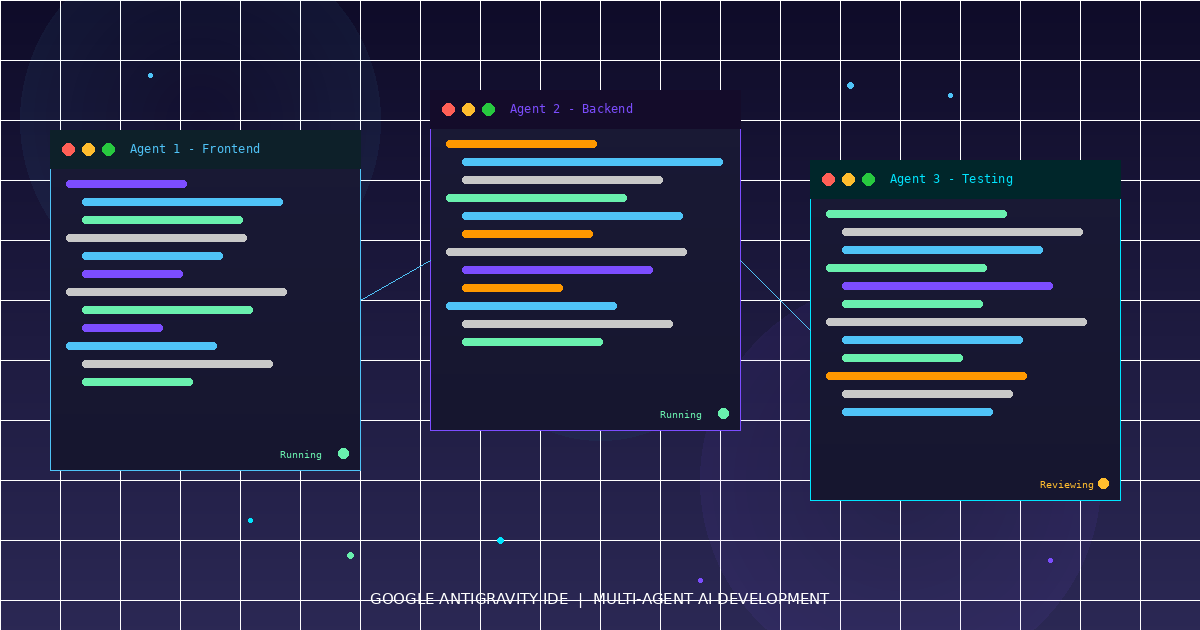
How to Use Google Antigravity IDE: AI Agents Build Apps

How to Use Google Antigravity IDE: AI Agents Build Apps

K
Kodetra Technologies·April 14, 2026·3 min read Beginner

Summary

Learn to set up Google Antigravity IDE and use multi-agent AI workflows to build apps without heavy coding.
What is Google Antigravity?

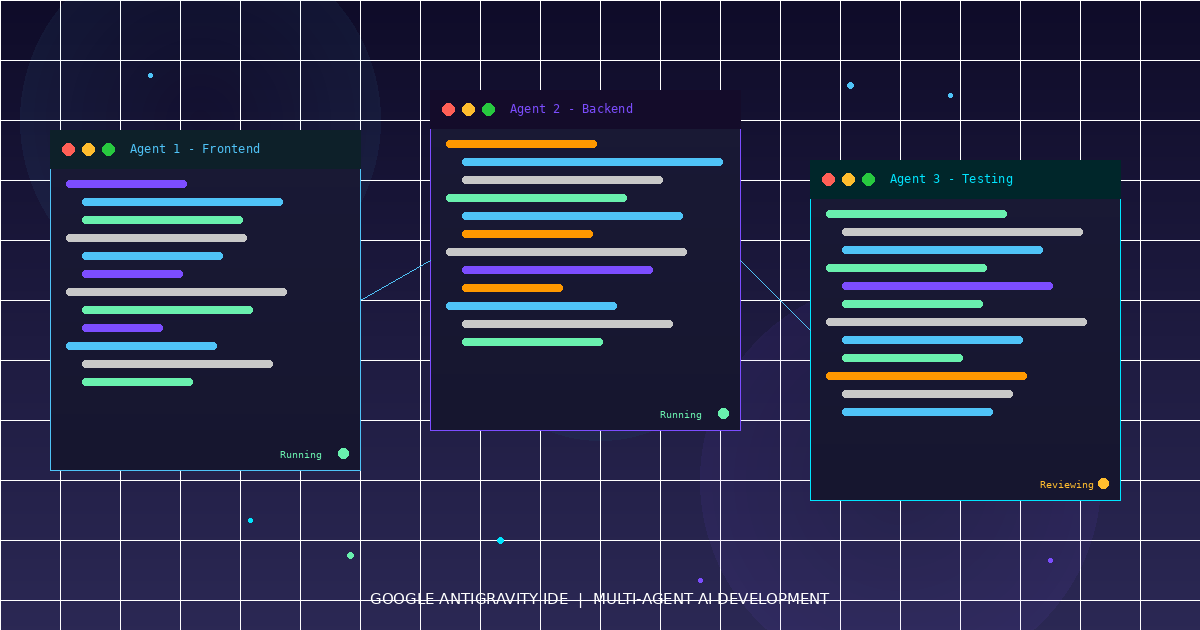
Google Antigravity is a free AI-powered code editor (IDE) where AI agents write, test, and debug code for you. Think of it as having a team of AI developers working on your project at the same time.

Who is this for? Beginners, non-coders, and developers who want to ship faster.

What you'll learn: Install Antigravity, configure agents, and build a working app using plain English instructions.

Time needed: ~15 minutes


Prerequisites

  • A personal Gmail account (Google Workspace accounts not supported yet)
  • Windows, macOS, or Linux
  • Chrome browser installed

Step 1: Download and Install

  1. Go to antigravity.google/download
  2. Select your OS (Mac .dmg / Windows .exe / Linux .deb)
  3. Run the installer
  4. Launch Antigravity

Step 2: Sign In and Initial Setup

  1. Sign in with your personal Gmail account
  2. Choose a theme (Dark/Light) — or import settings from VS Code or Cursor
  3. Configure two key settings:
SettingOptionWhat It Does
Terminal Permissions"Request Review"Agent asks before running commands
Artifact Review Policy"Pause on Major Changes"Agent pauses before big file edits

Recommended for beginners: Keep both on "Request Review" so you stay in control.


Step 3: Understand the Two Views

Antigravity has two main interfaces:

Editor View

Your standard code editor. Write code, get autocomplete suggestions, and chat with AI in the sidebar.

Manager View (Mission Control)

This is where the magic happens. You type a task in plain English, and Antigravity assigns AI agents to complete it.

How to switch: Click the toggle icon in the top-right corner of the window.


Step 4: Run Your First Mission

  1. Open Manager View
  2. Click "New Mission"
  3. Type your task in plain English

Example Input:

Build a landing page with a hero section, feature cards, 
and a contact form. Use HTML, CSS, and JavaScript.
  1. Click "Run"
  2. Watch the agents work in real time

Example Output: Antigravity creates 3 files:

index.html    — Page structure with hero, cards, contact form
styles.css    — Responsive styling
script.js     — Form validation logic

Each agent shows its progress as visual artifacts (plans, code diffs, screenshots).


Step 5: Review and Approve Changes

Agents pause at checkpoints and show you:

  • Task Plan — What the agent intends to do
  • Code Diffs — What lines will change
  • Browser Screenshots — How the result looks

Click "Approve" to continue or "Edit" to give corrections.

Example correction:

Change the hero background color to dark blue (#1a1a2e) 
and make the CTA button larger.

The agent updates only what you asked — no full rebuild.


Step 6: Use Multiple Agents in Parallel

This is Antigravity's biggest advantage. You can run up to 5 agents simultaneously.

Example Mission:

Agent 1: Build user authentication with Google OAuth
Agent 2: Write unit tests for the auth module
Agent 3: Create a dashboard page with charts
Agent 4: Set up a SQLite database for user profiles
Agent 5: Write API documentation in Markdown

Each agent works independently and reports back when done.


Step 7: Choose Your AI Model

Antigravity supports multiple AI models. Assign different models to different agents based on the task.

ModelBest For
Gemini 3.1 ProGeneral coding, planning
Gemini 3 FlashQuick edits, fast iteration
Claude Sonnet 4.6Nuanced logic, debugging
Claude Opus 4.6Complex architecture

How to change: Click the model name next to any agent in Manager View and select from the dropdown.


Step 8: Test with the Built-In Browser

Antigravity has a built-in Chrome-based browser. Agents automatically:

  1. Launch your app in the browser
  2. Take screenshots of the result
  3. Report visual bugs they find

You don't need to manually open a browser to test.


Pricing Quick Reference

PlanCostRequests/Day
Free$0~20
Pro$20/monthHigher limits
Ultra$249.99/monthMaximum access

The free tier is enough to try everything in this guide.


Common Mistakes to Avoid

  1. Vague missions — "Make a website" is too broad. Be specific about pages, features, and tech stack.
  2. Skipping reviews — Always check agent output before approving. Agents are good but not perfect.
  3. Too many agents on small tasks — One agent is fine for a single-page component. Use multiple agents for multi-feature projects.

Quick Recap

StepAction
1Download from antigravity.google/download
2Sign in with personal Gmail, configure review settings
3Learn Editor View (code) vs Manager View (agents)
4Type a mission in plain English and hit Run
5Review agent output at each checkpoint
6Run up to 5 agents in parallel for bigger projects
7Pick the right AI model per task
8Use the built-in browser for testing

Next Steps

  • Try building a todo app with authentication as your first real project
  • Explore AgentKit 2.0's 16 specialized agents for frontend, backend, and testing
  • Connect your GitHub repo directly to push code from Antigravity

Comments

Subscribe to join the conversation...

Be the first to comment