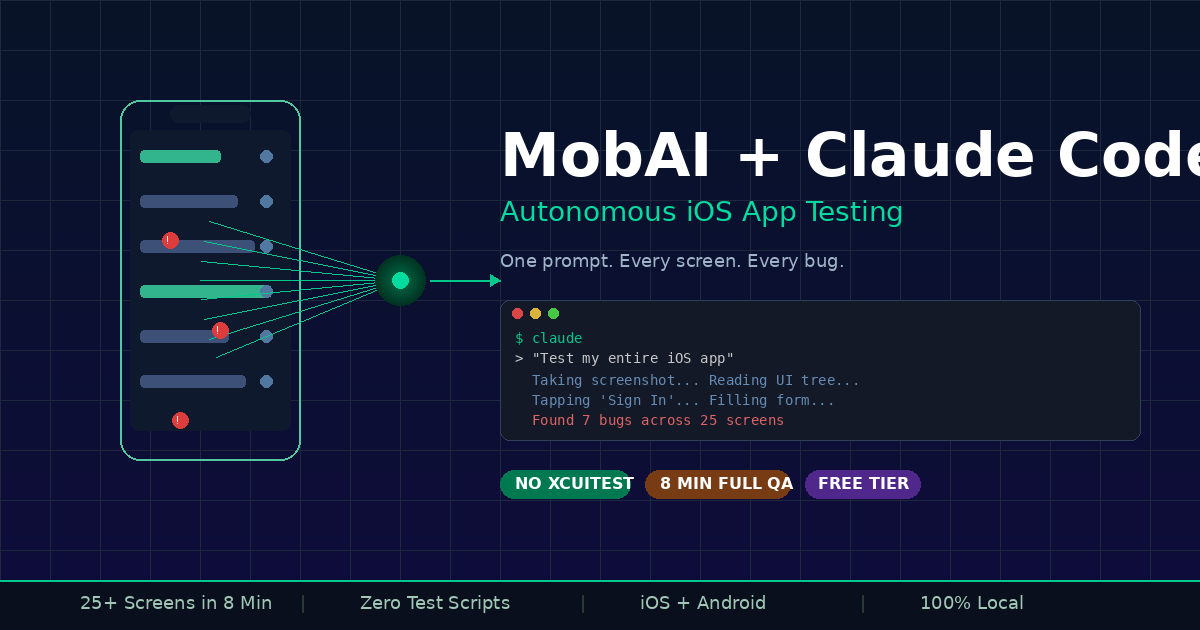
MobAI + Claude Code: Autonomous iOS App Testing Guide
Summary
Let Claude Code test your entire iOS app autonomously — no XCUITest scripts, just one prompt. Setup guide.
What Is MobAI?
MobAI is a desktop app that gives AI coding agents (Claude Code, Cursor, Codex) the ability to see and interact with real mobile devices.
It provides an MCP server + HTTP API that lets your AI agent:
| Capability | How |
|---|---|
| See the screen | Screenshots + accessibility tree |
| Tap buttons | Coordinate-based or element-based taps |
| Type text | Direct keyboard input |
| Swipe/scroll | Directional or coordinate-based |
| Read UI elements | Structured accessibility tree (filtered, indexed) |
| Run scripts | MobAI DSL — 20+ action types |
| Launch apps | By bundle ID |
Key point: Everything runs locally. Screenshots, UI data, and automation happen on your machine. Your app data never leaves your computer.
How It Works (The Architecture)

The flow:
- You give Claude Code a prompt ("test my app")
- Claude calls MobAI's MCP server
- MobAI takes a screenshot + reads the accessibility tree
- Claude sees a structured, machine-readable UI map
- Claude decides what to tap/swipe/type
- MobAI executes the action on the simulator
- Repeat: screenshot → reason → act → screenshot
- Claude reports all findings
The accessibility tree is the breakthrough. Instead of raw pixel matching, MobAI gives Claude a clean, filtered tree with element types, text labels, bounds, and indices. Claude can reason about full screens without burning context window.
What You Need
| Requirement | Details |
|---|---|
| macOS | Required for iOS Simulator |
| Xcode | Latest version + iOS Simulator |
| Node.js | v18+ |
| Claude Code | Installed and authenticated |
| MobAI | Free tier works (1 device, 100 API calls/day) |
| Your iOS app | Running in Simulator |
Step 1: Install MobAI
Option A: Download the Desktop App
- Go to mobai.run
- Download for macOS
- Install and open
- Connect your iOS Simulator (auto-detected)
Option B: MCP Server via npm
npm install -g mobai-mcp
Verify installation:
npx mobai-mcp --version
Step 2: Configure Claude Code
Add MobAI to your Claude Code MCP config.
For Claude Code (.claude/settings.json):
{
"mcpServers": {
"mobai": {
"command": "npx",
"args": ["-y", "mobai-mcp"]
}
}
}
For Cursor (.cursor/mcp.json):
{
"mcpServers": {
"mobai": {
"command": "npx",
"args": ["-y", "mobai-mcp"]
}
}
}
Restart Claude Code after adding the config.
Step 3: Boot Your iOS Simulator
# List available simulators
xcrun simctl list devices available
# Boot a specific simulator (e.g., iPhone 16 Pro)
xcrun simctl boot "iPhone 16 Pro"
# Open Simulator app
open -a Simulator
Output:
== Devices ==
-- iOS 18.4 --
iPhone 16 (ABCD-1234) (Shutdown)
iPhone 16 Pro (EFGH-5678) (Booted) ✓
iPhone 16 Pro Max (IJKL-9012) (Shutdown)
Step 4: Install & Launch Your App
# Build your app for simulator
xcodebuild -project MyApp.xcodeproj \
-scheme MyApp \
-sdk iphonesimulator \
-destination 'platform=iOS Simulator,name=iPhone 16 Pro' \
build
# Install the app
xcrun simctl install booted ./Build/Products/Debug-iphonesimulator/MyApp.app
# Launch the app
xcrun simctl launch booted com.yourcompany.MyApp
Step 5: Verify MobAI Can See Your Device
Once MobAI is running, test the connection:
Via HTTP API:
# List connected devices
curl http://127.0.0.1:8686/api/v1/devices
Output:
{
"devices": [
{
"id": "EFGH-5678",
"name": "iPhone 16 Pro",
"platform": "ios",
"status": "connected"
}
]
}
Take a test screenshot:
curl http://127.0.0.1:8686/api/v1/devices/EFGH-5678/screenshot \
--output test-screenshot.png
Read the accessibility tree:
curl http://127.0.0.1:8686/api/v1/devices/EFGH-5678/ui-tree
Output (simplified):
{
"tree": [
{
"index": 0,
"type": "button",
"text": "Sign In",
"bounds": {"x": 150, "y": 400, "width": 120, "height": 44}
},
{
"index": 1,
"type": "textField",
"text": "",
"placeholder": "Email",
"bounds": {"x": 50, "y": 280, "width": 300, "height": 44}
}
]
}
Step 6: The One Prompt That Tests Everything
Open Claude Code in your project directory and run:
You have access to MobAI tools to control the iOS Simulator.
My app is running in the simulator. I want you to:
1. Take a screenshot and read the accessibility tree
2. Explore EVERY screen in the app
3. Tap every button, fill every form, test every flow
4. For each screen:
- Document what you see
- Try valid AND invalid inputs
- Check for visual bugs, broken layouts, missing labels
- Test edge cases (empty states, long text, special characters)
5. Check the debug console/logs for errors
6. Give me a structured bug report with:
- Bug description
- Steps to reproduce
- Screen where it was found
- Severity (critical/high/medium/low)
Start now.
What happens next:
Claude will autonomously:
- Take screenshots and parse the accessibility tree
- Navigate through your app screen by screen
- Tap buttons, fill forms, trigger actions
- Identify UI issues, crashes, and logic errors
- Generate a structured report

How Claude "Sees" Your App
Claude doesn't guess where buttons are. MobAI provides a filtered accessibility tree — not the raw platform dump.
What gets filtered out:
- Non-interactive containers
- Invisible elements
- Redundant wrapper views
What Claude receives:
[0] Button: "Sign In" at (150, 400, 120x44)
[1] TextField: placeholder="Email" at (50, 280, 300x44)
[2] TextField: placeholder="Password" at (50, 340, 300x44)
[3] Link: "Forgot Password?" at (200, 460, 140x20)
[4] Button: "Create Account" at (150, 520, 120x44)
Claude reads this, decides "I'll fill the email field first," then tells MobAI to tap index 1 and type text.
MobAI MCP Tools Reference
These are the tools Claude Code can call through the MCP server:
| Tool | What It Does |
|---|---|
| list_devices | Show connected devices/simulators |
| get_device | Get info about a specific device |
| start_bridge | Start automation bridge to device |
| stop_bridge | Stop the bridge |
| get_screenshot | Capture current screen |
| get_ui_tree | Read accessibility tree (filterable) |
| tap | Tap element by index or coordinates |
| type_text | Type text into focused field |
| swipe | Swipe by direction or coordinates |
| go_home | Press home button |
| launch_app | Launch app by bundle ID |
| list_apps | List installed apps |
| execute_dsl | Run a MobAI Script |
| run_agent | Run autonomous agent task |
MobAI Script DSL: Repeatable Tests
For tests you want to run again, use MobAI's DSL. It supports 20+ action types in a single API call.
Login Flow Test
{
"steps": [
{
"action": "observe",
"context": "native",
"include": ["ui_tree", "screenshot"]
},
{
"action": "tap",
"predicate": {"placeholder": "Email"}
},
{
"action": "type",
"text": "test@example.com"
},
{
"action": "tap",
"predicate": {"placeholder": "Password"}
},
{
"action": "type",
"text": "SecurePass123!"
},
{
"action": "tap",
"predicate": {"text": "Sign In"}
},
{
"action": "wait_for",
"predicate": {"text": "Welcome"},
"timeout_ms": 5000
},
{
"action": "observe",
"context": "native",
"include": ["screenshot"]
}
]
}
Run via API:
curl -X POST http://127.0.0.1:8686/api/v1/devices/EFGH-5678/dsl/execute \
-H "Content-Type: application/json" \
-d @login-test.json
More DSL Actions
Swipe to scroll:
{"action": "swipe", "direction": "up", "distance": "medium"}
Toggle a switch:
{
"action": "toggle",
"predicate": {"type": "switch", "text_contains": "Notifications"},
"state": "on"
}
Wait for element:
{
"action": "wait_for",
"predicate": {"text": "Loading complete"},
"timeout_ms": 10000
}
Assert element exists:
{
"action": "assert",
"predicate": {"text": "Profile"},
"exists": true
}
HTTP API Quick Reference
Base URL: http://127.0.0.1:8686/api/v1
| Endpoint | Method | Purpose |
|---|---|---|
| /devices | GET | List all devices |
| /devices/{id}/screenshot | GET | Take screenshot |
| /devices/{id}/ui-tree | GET | Get accessibility tree |
| /devices/{id}/tap | POST | Tap at coordinates |
| /devices/{id}/type | POST | Type text |
| /devices/{id}/swipe | POST | Swipe gesture |
| /devices/{id}/dsl/execute | POST | Run DSL script |
| /devices/{id}/app/launch | POST | Launch app |
| /devices/{id}/app/list | GET | List installed apps |
Tap example:
curl -X POST http://127.0.0.1:8686/api/v1/devices/EFGH-5678/tap \
-H "Content-Type: application/json" \
-d '{"x": 150, "y": 400}'
Type example:
curl -X POST http://127.0.0.1:8686/api/v1/devices/EFGH-5678/type \
-H "Content-Type: application/json" \
-d '{"text": "hello@test.com"}'
Real-World Results
Based on published case studies:
| Metric | Result |
|---|---|
| Time to test full app | ~8 minutes |
| Screens covered | 25+ screens in 90 seconds (scripted) |
| Bugs found | Every bug the developer missed |
| Test maintenance | Zero — no brittle selectors |
| Script writing | None — natural language prompt |
Types of Bugs Claude Catches
- UI bugs: Overlapping elements, broken layouts, truncated text
- Logic bugs: Wrong navigation, incorrect state transitions
- Accessibility bugs: Missing labels, non-interactive elements
- Edge cases: Empty states, special characters, long strings
- Crashes: Unhandled exceptions in debug logs
- Console errors: Runtime warnings and errors
Pro Tips
1. Add CLAUDE.md Context
Create a CLAUDE.md in your project root to give Claude app-specific context:
markdown
# App Testing Context
## App Structure
- Login screen → Home (4 tabs) → Profile
- Settings accessible from Profile tab
- Push notifications permission prompt on first launch
## Known Test Accounts
- Email: test@example.com / Password: Test1234!
- Admin: admin@example.com / Password: Admin1234!
## Key Flows to Test
1. Sign up → Email verification → Onboarding
2. Login → Browse feed → Like post → Comment
3. Profile → Edit → Save changes
4. Settings → Toggle notifications → Verify
## Areas of Concern
- Feed infinite scroll performance
- Image upload in profile edit
- Deep link handling from notifications
2. Pair with XcodeBuildMCP
Use XcodeBuildMCP alongside MobAI so Claude can also build your app, not just test it:
json
{
"mcpServers": {
"mobai": {
"command": "npx",
"args": ["-y", "mobai-mcp"]
},
"xcodebuild": {
"command": "npx",
"args": ["-y", "xcodebuild-mcp"]
}
}
}
Now Claude can: build → deploy → test → report in one flow.
3. Check Debug Logs
Add this to your prompt to catch runtime errors:
After testing each screen, run `xcrun simctl spawn booted log show
--predicate 'process == "MyApp"' --last 2m --style compact`
to check for runtime errors, crashes, and warnings.
4. Test on Multiple Devices
# Boot multiple simulators
xcrun simctl boot "iPhone SE (3rd generation)"
xcrun simctl boot "iPhone 16 Pro Max"
xcrun simctl boot "iPad Pro 13-inch (M4)"
MobAI Pro ($9.99/mo) supports unlimited devices — test screen sizes simultaneously.
MobAI vs XCUITest vs Appium
| Feature | MobAI + Claude | XCUITest | Appium |
|---|---|---|---|
| Setup time | 5 minutes | 1–2 hours | 2–4 hours |
| Test scripts needed | No | Yes (Swift) | Yes (any lang) |
| Test maintenance | Zero | High | High |
| Exploratory testing | Autonomous | Manual | Manual |
| Accessibility testing | Built-in | Manual asserts | Plugin needed |
| AI-powered reasoning | Yes | No | No |
| Cross-platform | iOS + Android | iOS only | iOS + Android |
| CI/CD integration | API/DSL | Native | Native |
| Cost | Free–$9.99/mo | Free (Xcode) | Free (OSS) |
Pricing
| Plan | Price | Devices | API Calls | Offline |
|---|---|---|---|---|
| Free | $0 | 1 | 100/day | No |
| Pro | $9.99/mo | Unlimited | Higher quota | 7-day |
Free tier is enough to get started and test a single app.
Troubleshooting
| Problem | Fix |
|---|---|
| "No devices found" | Boot simulator: xcrun simctl boot "iPhone 16 Pro" |
| MCP not connecting | Restart Claude Code after config change |
| Taps hitting wrong element | Use accessibility tree indices, not coordinates |
| Slow response | Reduce screenshot frequency in prompt |
| API 404 errors | Verify MobAI is running: curl http://127.0.0.1:8686/api/v1/devices |
What's Next?
You now know how to:
- Set up MobAI + Claude Code for iOS testing
- Let Claude autonomously explore and test your entire app
- Write repeatable DSL scripts for critical flows
- Use the HTTP API for custom automation
- Catch bugs without writing a single XCUITest
This approach works for Android too — just connect an Android emulator or device instead.
Comments
Be the first to comment