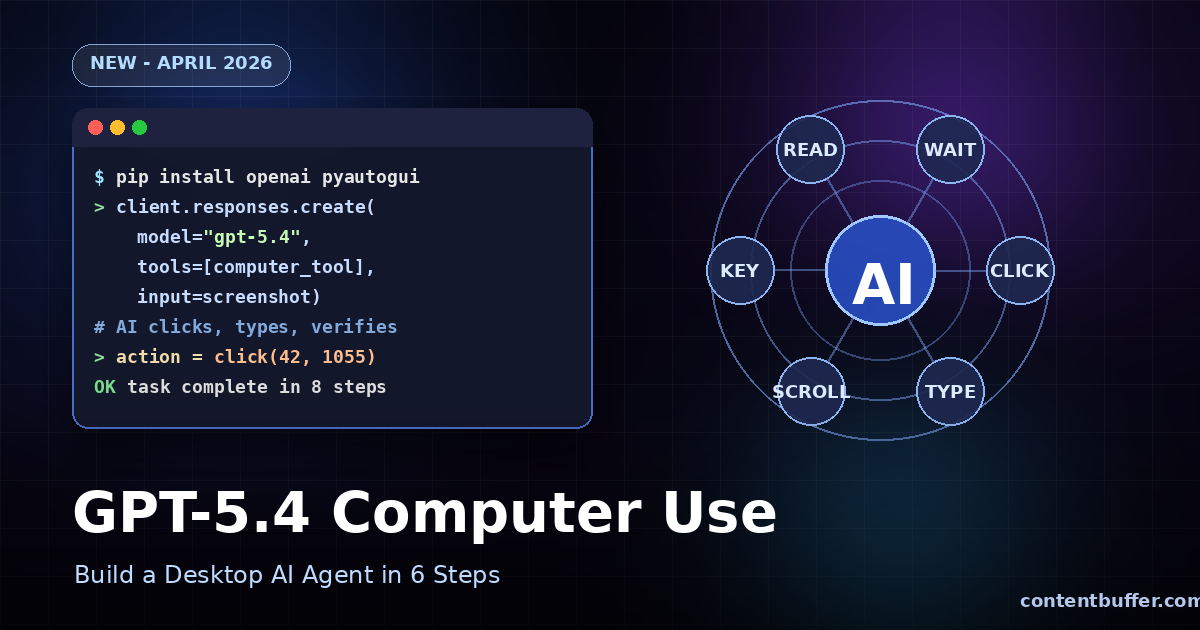
GPT-5.4 Computer Use: Build a Desktop AI Agent Guide
Summary
Automate desktop tasks with GPT-5.4's native computer-use API in six simple, tested steps.
Why GPT-5.4 Computer Use Matters
GPT-5.4 is the first mainline OpenAI model shipped with native computer-use. It can see your screen, click buttons, type text, and verify its own work in a build-run-verify-fix loop.
It scores 75% on OSWorld, beating the human expert baseline of 72.4%. You give it a task and a screenshot; it returns precise mouse and keyboard actions you execute locally.
Prerequisites
- Python 3.10+
- OpenAI API key with Tier 1 access (minimum $5 prior spend)
- A desktop environment with a display
- pip packages: openai, pyautogui, pillow
Step 1: Install the SDK
Upgrade openai to ensure you have the computer_use tool type. Install pyautogui for executing actions and Pillow for screenshots.
pip install --upgrade openai pyautogui pillow
Step 2: Take a Screenshot
GPT-5.4 needs a picture of your screen to reason about. Capture it and convert it to base64.
import pyautogui, base64, io
def capture_screen():
img = pyautogui.screenshot()
buf = io.BytesIO()
img.save(buf, format="PNG")
return base64.b64encode(buf.getvalue()).decode()
screen_b64 = capture_screen()
Step 3: Configure the Computer Use Tool
Tell GPT-5.4 your display size so it returns pixel-accurate coordinates.
from openai import OpenAI
import pyautogui
client = OpenAI()
w, h = pyautogui.size()
computer_tool = {
"type": "computer_use",
"display_width": w,
"display_height": h,
"environment": "linux" # or "mac", "windows"
}
Step 4: Send the First Request
Give the model a task plus the screenshot. It responds with an action.
response = client.responses.create(
model="gpt-5.4",
tools=[computer_tool],
input=[{
"role": "user",
"content": [
{"type": "input_text", "text": "Open Firefox and search for 'agentic AI'"},
{"type": "input_image", "image_url": f"data:image/png;base64,{screen_b64}"}
]
}]
)
print(response.output[0])
Example Output
{
"type": "computer_call",
"action": {
"type": "click",
"x": 42,
"y": 1055,
"button": "left"
},
"call_id": "call_abc123"
}
Step 5: Execute the Action Locally
Map the model's action to pyautogui calls. Keep a safety check so nothing runs without you.
import pyautogui
def run_action(action):
t = action["type"]
if t == "click":
pyautogui.click(action["x"], action["y"], button=action.get("button", "left"))
elif t == "type":
pyautogui.typewrite(action["text"], interval=0.02)
elif t == "key":
pyautogui.hotkey(*action["keys"])
elif t == "scroll":
pyautogui.scroll(action["dy"])
elif t == "screenshot":
pass # handled in loop
run_action(response.output[0]["action"])
Step 6: Loop Until Task Complete
After each action, send a fresh screenshot plus the call_id. Stop when the model returns a final message instead of a computer_call.
prev_id = response.id
call_id = response.output[0]["call_id"]
while True:
screen_b64 = capture_screen()
resp = client.responses.create(
model="gpt-5.4",
previous_response_id=prev_id,
tools=[computer_tool],
input=[{
"type": "computer_call_output",
"call_id": call_id,
"output": {"type": "input_image",
"image_url": f"data:image/png;base64,{screen_b64}"}
}]
)
out = resp.output[0]
if out["type"] != "computer_call":
print("Done:", out.get("content"))
break
run_action(out["action"])
prev_id, call_id = resp.id, out["call_id"]
Supported Actions at a Glance
| Action | Purpose | Key Fields |
|---|---|---|
| click | Mouse click | x, y, button |
| type | Keyboard input | text |
| key | Hotkey combo | keys[] |
| scroll | Scroll page | dx, dy |
| screenshot | Re-observe | none |
| wait | Pause for UI | ms |
Pro Tips
- Run in a sandbox or VM — agents sometimes click unexpected things.
- Cap iterations at 20–30 to avoid runaway loops.
- Use the Responses API with previous_response_id for state.
- Log every action and screenshot for debugging.
- Scale your display if coordinates seem off on HiDPI screens.
Next Steps
Start with a tiny task like 'open calculator and compute 42 * 7'. Once the loop feels stable, graduate to multi-app workflows — scraping a dashboard, filing a report, or testing a web app end-to-end.
GPT-5.4 Computer Use turns desktop automation into a plain-English conversation. Build your first agent today, and you'll never script brittle Selenium again.
Comments
Be the first to comment